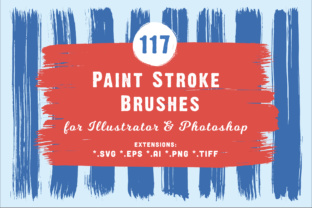
Unlocking Authentic Texture: A Guide to the 117 Paint Stroke Brushes for Illustrator and Photoshop
There is a distinct difference between digital art that looks clean and digital art that feels alive. The latter often relies on the imperfections of traditional media—the grain of paper, the uneven distribution of ink, and the organic flow of a hand-painted stroke. This is precisely where the 117 Paint Stroke Brushes for Illustrator Photoshop set becomes an invaluable asset for creators ranging from hobbyists to seasoned professionals. However, simply downloading a massive library of brushes does not guarantee masterpiece results. Many users stumble not because the tools are lacking, but because they misunderstand how to integrate high-fidelity textures into a modern digital workflow.
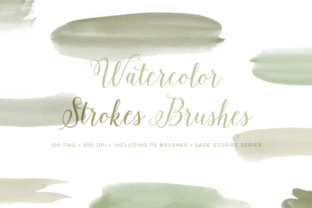
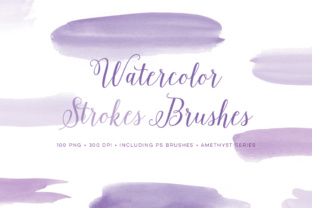
This extensive collection offers a bridge between the tactile world of watercolor paper and the precision of vector graphics. Created by hand using a wide range of physical brushes on smooth watercolor paper, each stroke was digitally captured at a robust 600dpi setting. This attention to detail ensures that when you apply these strokes, you aren't just placing a flat color; you are applying a realistic print with high-quality textures. Yet, without a strategic approach, even the best resources can lead to bloated files, inconsistent branding, or wasted time. Let's explore how to maximize this toolset while avoiding common pitfalls.
The Trap of Ignoring File Formats
One of the most frequent oversights when acquiring a comprehensive pack like this is failing to utilize the full spectrum of provided file formats. You receive Adobe Illustrator .ai files, Adobe Photoshop .abr files, Vector .eps, Vector .svg, and raster versions in .png and .tiff. A common mistake is sticking exclusively to one format out of habit. For instance, a web designer might default immediately to the raster .png files (dimension 6000 x 1000 px) for every project. While these are high resolution, using raster images for scalable logo elements or large-format print work can result in pixelation if the image is ever stretched beyond its intended bounds.
The Better Approach: Understand the specific strength of each format before you begin. Use the Vector .svg and Vector .ai files when you need infinite scalability, such as for signage or responsive web graphics. These maintain crisp edges regardless of size. Conversely, leverage the raster .tiff files when working on complex photo manipulations in Photoshop where layer blending modes and intricate texture overlays are required. By matching the file type to the output medium, you ensure maximum quality and efficiency.
Misunderstanding the Power of Hybrid Workflows
Many artists silo their tools, believing that Illustrator is strictly for vectors and Photoshop is strictly for pixels. This mindset limits the potential of the 117 Paint Stroke Brushes for Illustrator Photoshop. A significant error occurs when users try to force a purely vector workflow for projects that desperately need organic texture, or vice versa. They might spend hours trying to simulate watercolor bleeding using only vector gradients, resulting in a sterile look that lacks the soul of the original hand-captured strokes.
To avoid this, embrace a hybrid workflow. Start your composition in Illustrator using the Vector .eps or .ai brushes to establish your layout and typography with perfect alignment. Then, import these elements into Photoshop and overlay the included textures in their original raster shapes. This method allows you to keep the editability of vectors for text and shapes while gaining the rich, gritty feel of the 600dpi captured strokes. It saves time and produces a far more professional aesthetic than trying to achieve everything within a single software environment.
Overlooking Resolution and Print Requirements
While the included raster files boast a generous dimension of 6000 x 1000 px, assuming this is sufficient for every print scenario is a risky gamble. Beginners often assume that "high resolution" means "print ready" for any context. If you are designing a large-scale mural or a trade show backdrop, stretching a 6000px image across twenty feet will degrade the quality of those beautiful textures, turning fine grains into muddy blobs.
Practical Advice: Always calculate your final output size against the DPI requirements of your printer before committing to a raster-based design. If the project exceeds the safe limits of the included .png or .tiff files, switch to the vector counterparts included in the pack. The 117 brushes file in Illustrator format allows you to scale the stroke path infinitely. You can then apply the texture as a pattern or mask within the vector environment, ensuring that the fidelity of the hand-painted look remains sharp even at massive scales.
Neglecting Brush Dynamics and Settings
Installing the Adobe Photoshop .abr 117 brushes file is only the first step. A widespread misunderstanding is that these brushes will automatically mimic real paint behavior without adjustment. Users often apply them with default pressure settings, leading to repetitive, stamp-like patterns that destroy the illusion of hand-painted authenticity. This makes the artwork look generic and obviously digital, defeating the purpose of purchasing a premium, hand-captured set.
To get the most out of these tools, dive into the brush settings panel. Adjust the Shape Dynamics to respond to pen pressure, varying the opacity and size just as a real brush would react to the artist's hand. Experiment with the Texture settings within Photoshop to blend the 600dpi capture with the canvas grain. Taking the time to customize how the brush interacts with your tablet transforms a static asset into a dynamic instrument, significantly enhancing the natural flow of your strokes.
Failing to Organize Your Asset Library
With 117 unique strokes available across multiple formats, disorganization is a silent productivity killer. It is easy to download the zip file, dump it into a generic "Downloads" folder, and never touch it again because finding the right stroke becomes too tedious. This leads to creators reverting to old, overused brushes simply because they are easily accessible, leaving the high-quality textures in this pack unused.
Solution: Treat this download as a professional investment. Create a dedicated folder structure on your drive. Separate the vector files from the raster files. Consider creating a visual contact sheet or a PDF preview of the 117 strokes so you can quickly scan for the right texture without opening individual files. When you install the .abr and .ai files, group them logically within your software libraries. An organized system ensures that when inspiration strikes, you can locate the perfect watercolor wash or dry ink stroke in seconds, keeping your creative momentum intact.
Ultimately, the value of the 117 Paint Stroke Brushes for Illustrator Photoshop lies not just in the quantity of brushes, but in the quality of their creation and the wisdom with which you apply them. By respecting the differences between vector and raster, optimizing your workflow, and taking control of your software settings, you transform these digital assets into powerful extensions of your creativity. Avoid the shortcuts that lead to mediocre results, and instead, use these tools to bring a genuine, human touch to your digital projects.